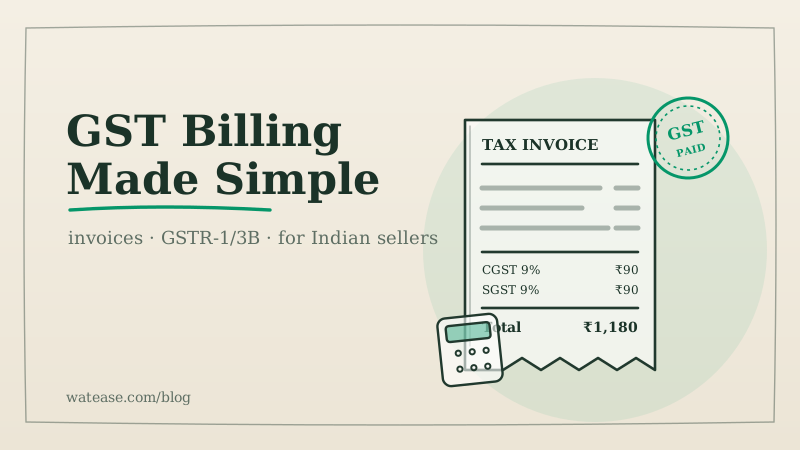
To send a GST invoice to a customer on WhatsApp, prepare a complete tax invoice, save it as a PDF and send that PDF as a document in the customer's chat. If you send it from the WhatsApp Business Platform (the API that billing and commerce software use) more than 24 hours after the customer last wrote to you, Meta requires an approved message template, so the PDF has to travel as that template's document header.
The rest of this guide covers what has to be on the invoice, when e-invoicing changes the order of steps, and how to automate the send. For GST registration, rates and returns, read our wider guide to GST billing for online stores in India. This post is educational, not tax advice; check your own case with your chartered accountant.
Step 1: Make sure the invoice is complete
WhatsApp only carries the document. What makes it a proper tax invoice is what is printed on it. Rule 46 of the CGST Rules, 2017, published by CBIC, lists the fields. These are the ones to check before every send:
- Your name, address and GSTIN.
- A consecutive invoice number of up to 16 characters, unique for the financial year, and the date of issue.
- The customer's name, address and GSTIN if they are registered. For an unregistered buyer, the name, the delivery address and the state with its code are required when the taxable value is ₹50,000 or more.
- The HSN code for goods or the SAC for services. How many HSN digits you print depends on your turnover, as set by CBIC Notification 78/2020-Central Tax.
- Description, quantity and unit, total value, and taxable value after any discount.
- The tax rate and amount: CGST plus SGST for a sale within your state, or IGST for a sale to another state.
- The place of supply with the state name for an inter-state sale, and the delivery address where it differs from the place of supply.
- Whether tax is payable on reverse charge.
- Your signature or digital signature, or that of an authorised person.
If you are under the composition scheme, you issue a bill of supply instead of a tax invoice, and you do not charge GST to the customer.
Step 2: If e-invoicing applies, get the IRN first
E-invoicing applies to the B2B invoices, exports, and credit and debit notes of a business whose aggregate turnover crossed ₹5 crore in any financial year since 2017-18. The notifications are on the CBIC site and the procedure is on the e-invoice portal. For these documents the order of steps matters. You report the invoice to the Invoice Registration Portal (IRP), which returns an Invoice Reference Number (IRN) and a signed QR code. Both go on the PDF, and only then do you send it. Our glossary entry on e-invoicing explains the flow in more detail.
Two limits from the GST portal's advisories are worth knowing. A business with aggregate turnover of ₹10 crore or more must report an invoice to the IRP within 30 days of its date. An IRN can be cancelled only within 24 hours of being generated; after that, a correction goes through a credit note.
Sales to consumers are not e-invoiced, so a typical online order from a consumer goes out as a regular tax invoice without an IRN.
Step 3: Send the PDF, by hand or automatically
By hand, from the WhatsApp Business app
For a few invoices a day, the free app works:
- Export the invoice from your billing software as a PDF, named with the invoice number.
- Open the customer's chat and attach it as a document, not as a photo, so the customer receives the PDF itself.
- Add one line with the invoice number, the amount due and how to pay.
- Record in your books that it was sent.
The limits show up quickly: nobody else sees what was sent, and nothing reminds you when a payment is late.
Automatically, through the WhatsApp Business Platform
A billing system connected to the WhatsApp Business Platform can send the PDF as soon as an invoice is issued or an order is paid. The rule to design around is Meta's 24-hour service window. Within 24 hours of the customer's last message, you may send the PDF as a normal document. After that, you must use an approved template message. For invoices, that means a template with a document header: the PDF rides in the header, and the body carries the invoice number and amount. Meta reviews each template and sets its category, so keep the wording about the invoice and leave offers out.
Set it up once:
- Connect your business number to a platform on the WhatsApp Business Platform.
- Write an invoice template with a document header and submit it for approval.
- Decide when the invoice goes: at payment, at dispatch, or at delivery for cash-on-delivery orders.
- Send a test invoice to your own number. Check that the PDF opens, the GSTINs are right and the payment link works.
How WatEase sends GST invoices on WhatsApp
WatEase is an agentic AI commerce and marketing platform, and invoicing is part of WatEase AI Finance, the accounting and GST side of the platform. This is what it does today:
- Invoices from orders. For orders taken on your WatEase online store, in a WhatsApp chat or on a QR menu, the invoice is raised from the order. By default the PDF goes to the customer's chat when a prepaid order is paid, and on delivery for a cash-on-delivery order. You can pick a different moment, such as confirmed, packed or shipped.
- Invoices you create. From an invoice, Send lets you choose WhatsApp or email. Sending a draft issues it first, so the customer gets the numbered invoice.
- The 24-hour rule. Inside the window, the PDF goes as a document with a short caption. Outside it, WatEase uses your approved invoice template with the PDF as its document header. If no such template is approved, it does not send, and it tells you why.
- GST on the PDF. The invoice prints your GSTIN, the buyer's GSTIN for a B2B sale, HSN or SAC codes, and CGST plus SGST or IGST worked out from the place of supply. A composition-scheme business gets a bill of supply.
- Payment in the same message. When money is owed and you have connected Razorpay, PhonePe, Easebuzz or Breeze, the message carries a payment link, and the payment is recorded against the invoice when it lands. If you have added a UPI ID, the PDF also carries a UPI QR code for the amount due.
- E-invoicing, when you switch it on. With your e-invoice API access connected in GST settings, WatEase reports each eligible invoice to the IRP when it is issued and prints the IRN, acknowledgement number and signed QR code that come back. It never prints an IRN of its own.
- Customers who ask again. A customer who messages "please send my invoice" gets the latest invoice on file for their number.
- Reminders and receipts. Unpaid invoices can get payment reminders with a fresh payment link, and a WhatsApp receipt can be switched on for when a payment is recorded.
Email works alongside WhatsApp for customers who prefer it. The full list of what GST invoicing and e-invoicing in AI Finance covers, from the books to GST returns, is on the product page. Pricing is on request.
For collecting the money itself, our guide to collecting payments on WhatsApp over UPI covers payment links, reminders and settlement.
Sell direct on every channel. Let AI agents run the rest.
Your own storefront, WhatsApp commerce, AI marketing and an AI CRM in one platform. Guided onboarding and no commission on your sales.
Get started →Want a plan sized to you? Get a quote
What to check before you choose a system
Before you let software send invoices for you, run one test invoice through it and check these:
- Rule 46 fields. Every field above prints, and the CGST plus SGST or IGST split follows the place of supply without you choosing it by hand.
- Official channel. It sends through the WhatsApp Business Platform. Tools that script the consumer WhatsApp app or WhatsApp Web break WhatsApp's terms and put your number at risk.
- Outside the 24-hour window. It uses an approved template with a document header, or tells you it could not send. A silent failure leaves a customer without an invoice.
- E-invoicing order. If e-invoicing applies to you, the IRN and QR code are on the PDF before it is sent, using your own e-invoice access.
- Payment and reconciliation. A payment through the link marks the invoice paid in your books without retyping.
- Returns. A return or cancellation produces a credit note against the original invoice.
- Other channels. Email works for customers who do not use WhatsApp, and invoices for orders from your website and Instagram land in the same books as WhatsApp orders.
Filing your GST returns stays with you or your accountant, so the system should keep every invoice it sent in one register you can file from.