Setting up a WhatsApp store does not require weeks of development or lakhs of rupees. With the right platform, you can go from zero to accepting orders in under five minutes. This tutorial walks you through every step using WatEase. Once your store is live, our SEO playbook for Indian D2C brands shows how to drive organic traffic into it.
WhatsApp Store vs Shopify vs Instagram Shop: Which Is Right for Indian Sellers?
Before you build, it helps to know why a WhatsApp store fits most Indian sellers better than a standalone website or an Instagram Shop — especially when you are just starting out.
| Factor | WhatsApp Store (WatEase) | Shopify Website | Instagram Shop |
|---|---|---|---|
| Time to launch | Under 5 minutes | 1–2 weeks (design + setup) | 1–3 days (catalog approval) |
| Monthly cost to start | On request | From ₹1,994/month + apps | Free (but no checkout in India) |
| Where the sale closes | In the chat the buyer already uses | On a checkout page you must drive traffic to | In DMs — manual, no payment link |
| India payments | UPI (0% MDR), Razorpay, COD built-in | UPI/cards via gateway apps | No native checkout in India |
| Trust for Tier-2/3 buyers | High — conversation = trust layer | Lower — unfamiliar storefront | Medium — but no structured catalog |
| Discovery / SEO | Low (needs sharing or ads) | High (search + content) | High (social reach) |
The honest takeaway: Instagram and a website are discovery channels; WhatsApp is where the purchase actually closes. Indian buyers, particularly outside the metros, distrust unfamiliar card-checkout pages but tap a UPI link inside a chat without hesitation. That is why the highest-converting setup is usually a WhatsApp store for the transaction, with Instagram and (later) a website feeding it. You do not have to choose permanently — WatEase syncs with Shopify and WooCommerce, so you can run both and keep one catalog. For the full picture, see our WhatsApp vs website e-commerce comparison and the complete guide to WhatsApp commerce in India.
What Do You Need Before Setting Up Your WhatsApp Store?
You need three things to get started: a smartphone with WhatsApp, basic business information, and product photos with prices. That is it.
Here is the complete checklist:
- A phone number dedicated to your business (or your existing WhatsApp number)
- Business name and address
- At least 3-5 product images (phone camera quality is fine)
- Product names, descriptions, and prices
- A bank account for receiving payments
- PAN card (for payment gateway KYC)
You do not need a website, domain name, developer, or any coding knowledge. WatEase handles the entire technical setup.
How Do You Sign Up and Configure Your WatEase Account?
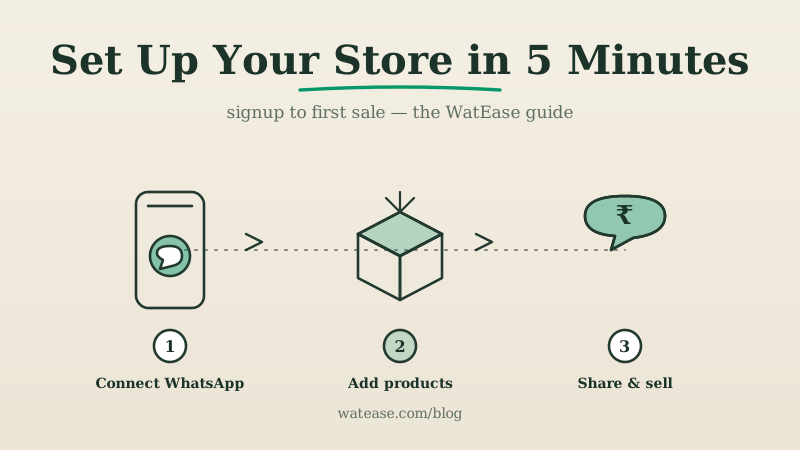
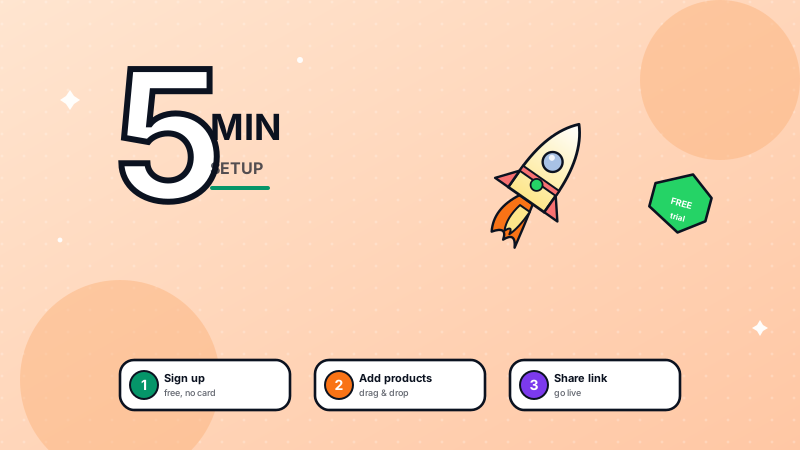
The signup process takes under 5 minutes. Visit the WatEase registration page and follow these steps.
Step 1: Create your account. Enter your business email and phone number. Verify via OTP.
Step 2: Enter business details. Fill in your business name, category, and address. This information appears on your store profile and order receipts.
Step 3: Connect your WhatsApp number. WatEase guides you through connecting your phone number to the WhatsApp Business API. You will scan a QR code, similar to setting up WhatsApp Web.
Step 4: Get your plan quoted. Tell us your use case and we quote a plan that fits your business size; catalog management, order processing, and payment collection are included as standard. See how pricing works.
Your account is now ready. Time to add products.
Run your business on WhatsApp with WatEase
Set up in minutes with guided onboarding. 0% markup on WhatsApp messages.
Get started →Want a plan sized to you? Get a quote
How Do You Add Products to Your WhatsApp Catalog?
Adding products is the most important step. A well-organized catalog directly impacts your sales. WatEase makes this simple with a visual product manager.
Adding your first product:
- Go to the Products section in your WatEase dashboard
- Click "Add Product"
- Upload 1-4 product images (square images work best)
- Enter the product name, description, and price
- Set stock availability (in stock, limited, or out of stock)
- Assign a category (e.g., "Men's Clothing", "Electronics")
- Click Save
Tips for faster product entry:
- Bulk upload -- Use the CSV import feature to add 100+ products at once
- Copy products -- Duplicate similar products and edit the differences
- Image sizing -- WatEase automatically resizes images, but 800x800 pixels gives the best results
For detailed guidance on creating high-converting product listings, read our catalog best practices guide.
| Product Field | Required | Best Practice |
|---|---|---|
| Product name | Yes | Keep under 60 characters, include key details |
| Description | Yes | 2-3 sentences, mention material/size/features |
| Price | Yes | Include MRP and selling price for discount display |
| Images | Yes (min 1) | Use 3-4 images showing different angles |
| Category | Recommended | Helps customers browse your catalog |
| SKU | Optional | Useful for inventory tracking |
How Do You Connect Payment Methods?
Collecting payments is where your WhatsApp store becomes a real business. WatEase supports all major Indian payment methods.
Supported payment integrations:
- UPI -- Direct bank-to-bank payments via any UPI app (Google Pay, PhonePe, Paytm, BHIM)
- Razorpay -- Accept cards, net banking, UPI, and wallets through a single integration
- PhonePe Payment Gateway -- Popular with customers who prefer PhonePe
- Paytm Payment Gateway -- Includes Paytm wallet and all standard methods
- Cash on Delivery (COD) -- For customers who prefer paying at delivery
To connect Razorpay (most popular choice):
- Go to Settings > Payments in WatEase
- Click "Connect Razorpay"
- Sign in to your Razorpay account (or create one -- takes 10 minutes)
- Authorize WatEase to process payments
- Done. Payment links are automatically generated for every order.
For a detailed comparison of payment methods and their fees, read our payment collection guide.
How Do You Share Your Store and Get Your First Order?
Your store is set up. Now you need customers to find it. WatEase generates a shareable store link (wa.me/yournum) and a QR code.
Immediate actions to get your first orders:
- Update your WhatsApp status with your store link and a "Now accepting orders on WhatsApp" message
- Share on social media -- Post your store link on Instagram, Facebook, and Twitter with product highlights
- Add to Google My Business -- Include your WhatsApp number so local customers can message you directly
- Print QR codes -- Place them on packaging, visiting cards, and shop counters
- Message existing contacts -- Send a one-time broadcast to your customer list (with consent)
Setting up automated responses:
WatEase lets you configure automatic messages that respond instantly when a customer reaches out:
- Welcome message -- Greets new customers and shows your catalog
- Order confirmation -- Sent automatically when an order is placed
- Payment reminder -- Follows up on unpaid orders after a set interval
- Shipping update -- Notifies customers when their order ships
These automations ensure no customer message goes unanswered, even when you are busy. Explore all WatEase features to see what you can automate.
What Common Mistakes Should You Avoid When Starting?
New WhatsApp store owners frequently make these mistakes. Avoiding them gives you a head start.
Mistake 1: Poor product images. Blurry or cluttered photos kill conversions. Use natural lighting and a clean background. Your phone camera is sufficient.
Mistake 2: No payment integration. Asking customers to manually transfer money adds friction and looks unprofessional. Always use an integrated payment link.
Mistake 3: Slow responses. Customers expect replies within minutes on WhatsApp. Set up automation for common queries and check messages regularly.
Mistake 4: Too many products at launch. Start with your 10-20 best-selling items. You can always expand later. A focused catalog converts better than an overwhelming one.
Mistake 5: No categories. Dumping all products into one list makes browsing painful. Organize by type, price range, or use case.
What If Something Goes Wrong? Troubleshooting Common Setup Issues
Most setup problems fall into a handful of buckets. Here is how to diagnose and fix the ones new sellers hit most.
"My WhatsApp number won't connect to the API." This almost always means the number is still active on the consumer WhatsApp or WhatsApp Business app. A number can run on the API or the app, not both (outside Meta's limited Coexistence mode). Delete the number from the app first, or use a fresh business number, then retry the QR connection in WatEase.
"My products aren't showing in the catalog." Check that each product is set to published and in stock — draft or out-of-stock items are hidden from buyers. If you bulk-imported via CSV, verify the price and image columns weren't left blank, which silently skips those rows.
"Payments aren't going through." Confirm your payment method is fully connected under Settings → Payments (a half-finished Razorpay authorisation is the usual culprit). For Razorpay, KYC must be approved before live payments work — this can take a few hours. Until then, enable UPI or COD so you don't lose orders.
"Customers message but I'm losing them before they order." This is a response-time problem. Buyers are far more likely to drop off the longer a greeting takes to arrive. Turn on the automated welcome flow so every new contact instantly sees your catalog and next step, even when you're away.
"My messages stopped reaching customers / my quality rating dropped." This is caused by over-broadcasting marketing templates to people who didn't opt in. Meta lowers your quality rating to Yellow or Red and silently caps your daily message limit. Fix it by only broadcasting to consented contacts, rotating template content, and leaning on Utility templates (order updates) rather than blasting Marketing sends. Our guide to WhatsApp commerce in India covers the quality-rating rules in depth.
If a problem persists, the Help Center and in-dashboard support can resolve account-specific issues quickly.
How Do You Scale Beyond Your First 100 Orders?
Once you have validated your WhatsApp store with initial orders, scaling is straightforward.
- Add more products based on customer demand and feedback
- Enable broadcast messages for new arrivals and promotions (with customer consent)
- Set up abandoned cart recovery -- WatEase automatically reminds customers who added items but did not complete payment
- Use analytics to identify best-selling products and peak ordering times
- Consider the retail-specific features for advanced inventory and order management
Your WhatsApp store grows with you. What starts as a simple catalog can evolve into a full commerce operation handling hundreds of orders daily.
Ready to begin? Create your WatEase account and have your store running in the next 5 minutes.
For the underlying WhatsApp Business Platform docs that power your store, see the official Meta Business Platform documentation.